The Privacy Settings Worth Changing on Every Device You Own
M
Maggie Garza
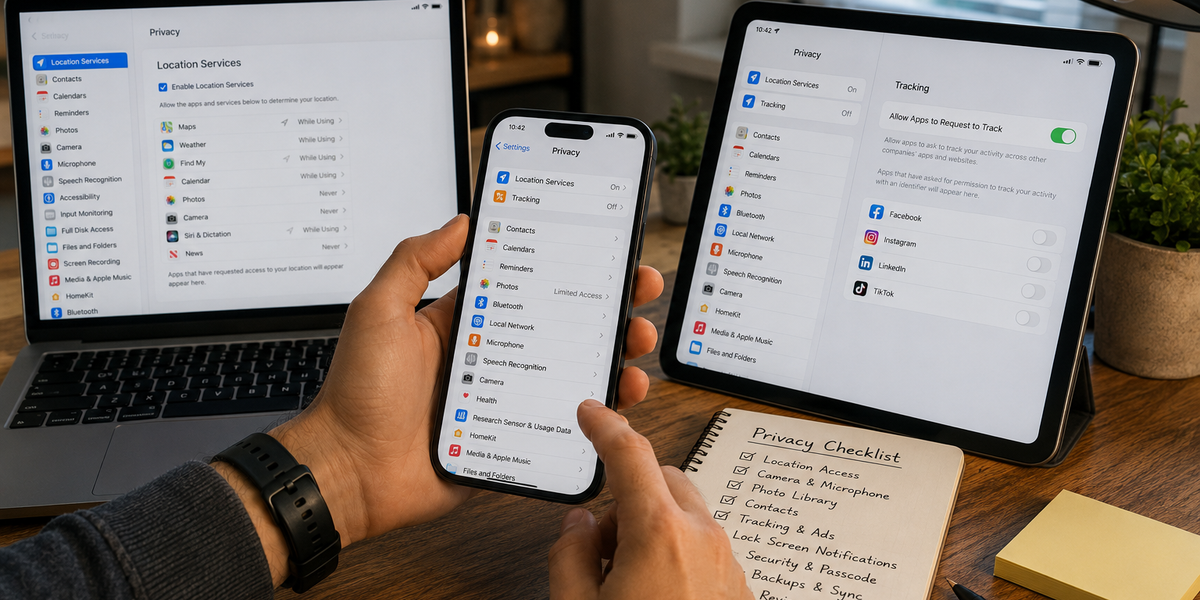

Most of us spend far more time setting up the appearance of a new device than checking its privacy settings.
We choose the wallpaper, download our favorite apps, sign into everything, and start using it. Meanwhile, dozens of permissions may quietly determine which apps can access our location, microphone, camera, contacts, photos, and other information.
You do not need to become a cybersecurity expert or disable every useful feature to improve your privacy. Many of the most worthwhile changes take only a few minutes and have little effect on how you normally use your devices.
The exact names of settings vary between operating systems and versions, but these are the areas worth checking on every phone, tablet, and computer you use.
Location access is useful when an app genuinely needs to know where you are.
Maps obviously need it while providing directions. A weather app may use your location to show a local forecast. A ride-hailing app needs to know where to pick you up.
Plenty of other apps have a much weaker case.
Open your device’s privacy settings and review location permissions individually. If an app does not need your location to perform its main function, consider turning access off.
For apps that occasionally need it, look for an option that allows location access only while you are using the app rather than continuously.
You may also have the option to provide an approximate rather than precise location.
The goal is not to disable location services entirely. It is to stop treating permanent location access as the default.
A video-calling app needs access to your microphone and camera. Your calculator probably does not.
Both iOS and Android provide controls that allow you to review which apps have requested these permissions. Computers increasingly offer similar controls.
Go through the lists occasionally and remove access that no longer makes sense.
Do the same for apps you barely use.
Modern devices also typically display an indicator when the microphone or camera is active. Pay attention to it. If the indicator appears when you are not knowingly using either feature, check which application is responsible.
Permission lists tend to grow over time, so this is worth reviewing more than once.
Apps often ask for photo access because you want to upload a single picture.
That does not necessarily mean they need access to every photograph you have ever taken.
Where your device supports it, choose limited or selected photo access for apps that only need occasional uploads.
Think about what lives inside a typical photo library: screenshots of conversations, travel documents, pictures of children, receipts, addresses, medical paperwork, and countless other pieces of personal information.
Giving an app access to thousands of images when you only need to upload one is an unnecessary trade.
Choose the narrowest permission that still allows the feature to work.
Many devices and apps use information about your activity to personalize advertising or measure how advertisements perform.
Look through your privacy and advertising settings for controls related to personalized ads, tracking, or sharing activity across apps and websites.
Turning these options off will not eliminate advertising.
You may simply receive ads that are less tailored to your interests.
Also review privacy settings inside the apps and services you use most frequently. Device-level controls are important, but individual accounts can have their own advertising and data-sharing preferences.
Privacy is rarely controlled by one master switch.
Contact lists are easy to overlook because granting access feels relatively harmless.
But your contacts contain information about other people too.
Messaging and communication apps may legitimately need contact access to help you find people you know. Other apps may request it primarily to improve recommendations or make it easier to invite friends.
Ask whether the feature is worth the permission.
If you granted contact access years ago and cannot remember why, turn it off and see whether anything you care about stops working.
You can always restore a permission later.
A locked phone can still display a surprising amount of information.
Message previews, verification codes, calendar reminders, email subjects, and other notifications may appear without anyone unlocking the device.
Check your lock-screen notification settings.
You can often hide sensitive notification content until the phone recognizes you or has been unlocked. Another option is allowing only selected apps to display notifications on the lock screen.
You do not necessarily need to hide everything.
The objective is to prevent someone who picks up or glances at your phone from reading information they do not need to see.
Privacy settings are much less useful if getting into the device is easy.
Use a strong passcode or password and enable biometric authentication such as fingerprint or facial recognition where appropriate.
Avoid extremely predictable PINs and patterns.
Also check how quickly your devices automatically lock after you stop using them. A laptop that remains unlocked indefinitely on a shared table creates a different privacy problem than an app permission ever could.
For important online accounts, enable multi-factor authentication when available.
These steps protect against more than sophisticated cyberattacks. They also help when a phone, tablet, or computer is simply lost or stolen.
Cloud synchronization is enormously convenient.
It keeps photographs, documents, contacts, messages, passwords, and other information available across devices and can protect important data if hardware is lost.
But it is worth understanding what is actually being synchronized.
Open your cloud account settings and review the categories of information being backed up. Remove old devices you no longer own or use, and check which applications store information in your cloud account.
Also make sure the account itself is protected with a strong, unique password and appropriate security features.
Convenience and privacy do not have to be opposites. They simply require deliberate settings.
Most people accumulate applications they no longer use.
Every few months, look through your devices and remove the ones you have forgotten about.
This cleans up storage and reduces the number of companies and services connected to your device.
For accounts you no longer want, deleting the app may not delete the account or information associated with it. Where appropriate, visit the service’s account settings and look for options to close or delete the account separately.
Digital clutter is still clutter.
There is no perfect collection of privacy settings that you can configure once and forget forever.
Devices update. Apps add features. Permissions change. New services appear.
Instead of trying to achieve perfect privacy, make occasional reviews part of normal device maintenance.
Every few months, spend ten minutes checking location, camera, microphone, photos, contacts, notifications, tracking, and account security.
You do not need to reject every permission.
Just make each app earn the access it receives.
Your devices contain an extraordinary amount of your life. Taking a few minutes to decide who gets access to which parts of it is one of the simplest digital habits worth keeping.

Attention rarely feels important while we are giving it away. We glance at a notification during dinner. We half-listen to someone while thinking about what we need to do next. We watch a film while checking our phones, walk through familiar streets without noticing them, and finish entire days unable to remember much of what actually happened.

We have become very good at recognizing lives that look interesting. They involve constant travel, impressive jobs, beautiful homes, busy social calendars, ambitious projects, expensive restaurants, dramatic announcements, and enough photographs to prove all of it happened. Online, an interesting life can start to resemble a continuous highlight reel.
Some people seem to move through the world with a different level of resolution. They notice when someone has changed their hair slightly. They remember the name of the waiter from a restaurant they visited months ago. They spot an unusual building on a street everyone else has walked down a hundred times. They can tell when a friend’s mood has shifted before the friend says anything.

Sometimes you arrive somewhere completely unfamiliar and feel strangely at ease. You do not know the streets. You have no memories attached to the buildings. You may not even speak the language. Yet within a few hours, something about the place feels comfortable. You can imagine having a favorite café there, knowing which market to visit on Saturday, or walking the same route home every evening.
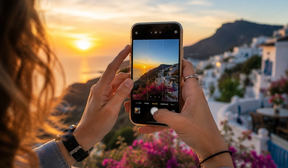
You do not need an expensive camera to take photographs worth keeping. The phone already in your pocket is capable of producing remarkably good images—and, more importantly, it is probably the camera you actually have with you when something worth photographing happens.

The internet is not something most of us can—or particularly want to—quit. We work online. We make plans through messages. We use maps, banking apps, calendars, news sites, music, podcasts, and group chats. Our phones contain genuinely useful tools alongside the apps that somehow turn five spare minutes into 45.